
How do I change the background color of a template
Using the “Edit” to change the background color in Easil
To change the background color of a template, follow these simple steps:
- Deselect all elements on the design
- In the Actionbar, click the Color Picker. With no elements selected, the color picker will set the background color for the design.
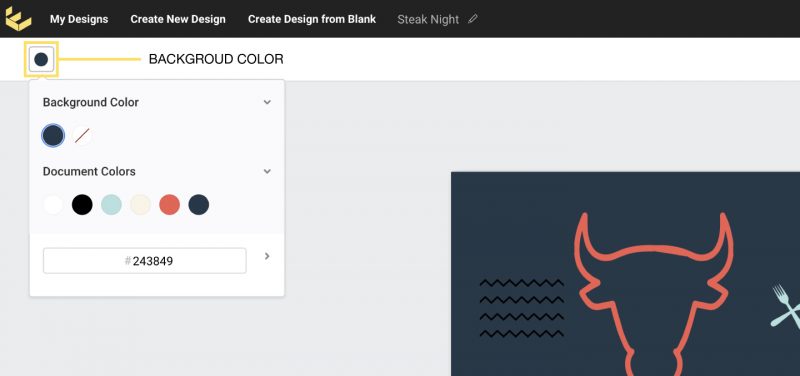
- Select a new color from the Document Colors, or Image Colors if there are images on the design. You can also set a custom color by opening the full color picker at the bottom of the design, or by entering a custom Hex code.